How to make an ICO file from a PNG that doesn't look blurry: multi-size icons for Windows
Most online ‘PNG to ICO’ tools give you one size, and Windows then stretches it. The fix is an ICO that contains several sizes, which is what Windows expects. Here’s which sizes, with a test, and the one-click way to make one.
Why a single-size ICO looks blurry
An .ico file is a container that can hold several images at different sizes. When Windows needs to draw an icon, Microsoft’s documentation says it “will look for an exact size match first. If there is no exact match it will look for the next size above and scale down.” If the only image in the file is 32 × 32 and Explorer wants 48 or 256, it scales the 32 up, and you get a soft, blocky icon.
Microsoft’s minimum recommendation is clear: “Apps should have, at the bare minimum: 16x16, 24x24, 32x32, 48x48, and 256x256.” The 256 is what large-icon and thumbnail views use; the small ones are for the title bar, context menus, the taskbar and the tray.
Source: Microsoft Learn, Construct your Windows app’s icon, checked 16 Sep 2026.
The test
We took a 256 × 256 PNG and built two ICO files on 16 Sep 2026: one containing 256, 48, 32, 24 and 16 px, and one containing only 32 px.
| File | Sizes inside | File size |
|---|---|---|
| multi.ico | 256, 48, 32, 24, 16 | 288 KB |
| single32.ico | 32 | 4.3 KB |
Here’s what Windows would have to do with the single-size file when it needs a 256-px icon, next to the real 256-px image:


The 288 KB is almost all the 256-px image; the four small sizes add under 20 KB.
Making one
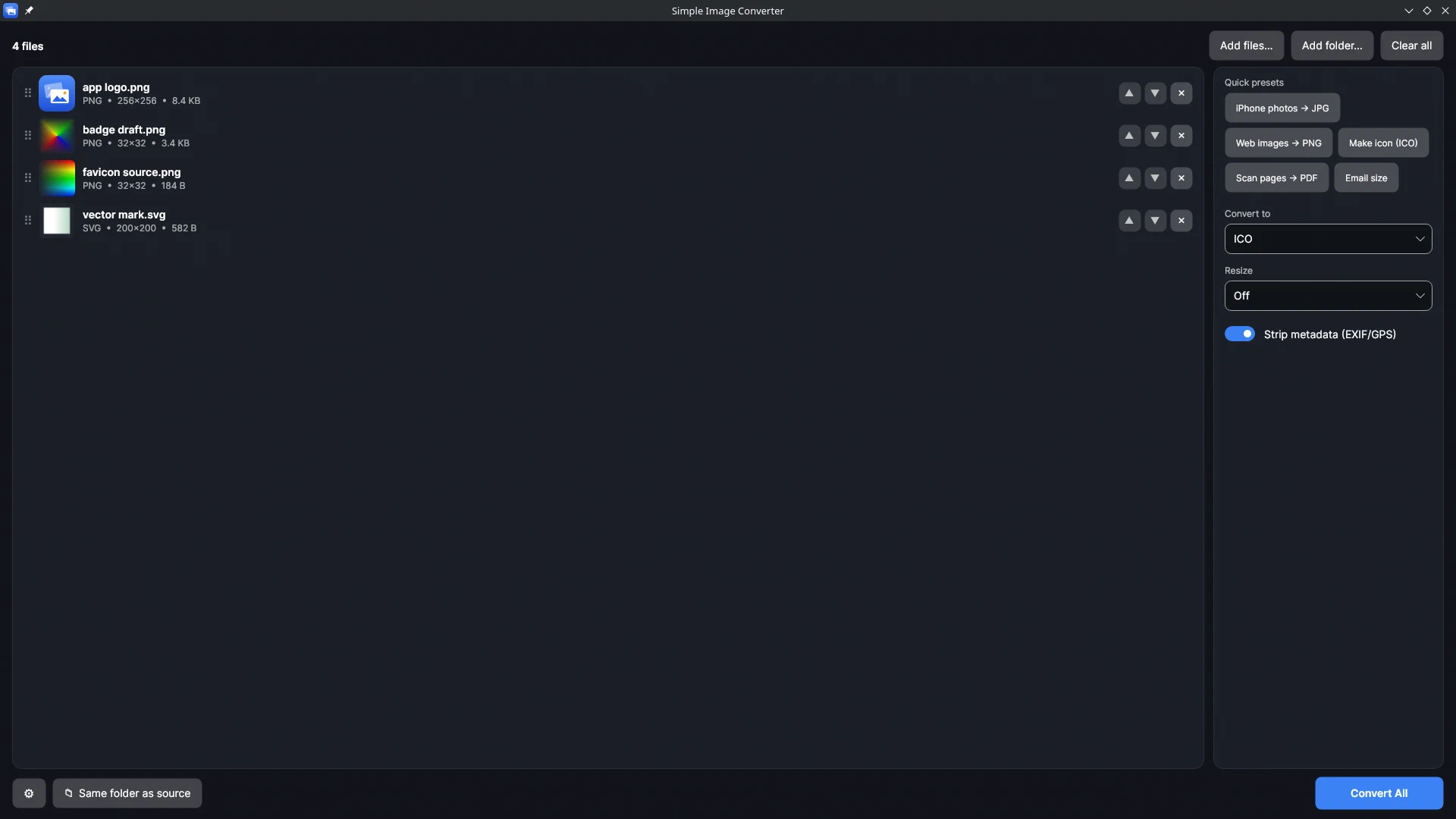
In Simple Image Converter: drop the PNG (or SVG), click the Make icon (ICO) preset, Convert All. It writes a multi-resolution ICO with sizes from 16 to 256 px in one file, and it does a folder of logos in one batch. Start from a square image of at least 256 × 256, ideally with a transparent background; Microsoft notes icons “look best with a transparent background”.
Using the ICO on Windows
- A folder: right-click the folder → Properties → Customize → Change Icon… → Browse to the .ico. Windows writes a
desktop.iniin the folder to remember it. - A shortcut: right-click the shortcut → Properties → Shortcut → Change Icon… → Browse.
- A drive: an
autorun.infwith anicon=line on the drive’s root, which Windows honours for most removable drives.
Keep the .ico somewhere it won’t move (not Downloads), because Windows stores the path, not the file. Simple Image Converter is a one-time purchase on Steam, for Windows and SteamOS/Linux.
Related guides
- WebP to JPG or PNG on Windows: one file, or a whole Downloads folder at once
How to convert WebP images to JPG or PNG on Windows 10 and 11 with Simple Image Converter: why you keep getting WebP, what happens to transparency (tested), and clearing a folder full of .webp files in one pass without uploading anything.
- Combine photos or scans into one PDF offline on Windows or Linux, at full resolution
Turn JPG, PNG, WebP or HEIC images into a single PDF without uploading them: Simple Image Converter puts one image per page with the page size equal to the image, in the order you drag. Plus PDF pages back out as images at 150, 300 or 600 DPI, tested.
- Simple Image Converter compared with iMazing, CopyTrans, XnConvert and web converters
What Simple Image Converter does that the usual HEIC converters for Windows don't: whole folders of mixed HEIC, WebP and AVIF in one pass, on Windows and Linux, offline, with location data stripped by default. Facts about each alternative from its own page, no prices.