Convert HEIC to JPG without uploading, and strip the location data while you're at it
Plenty of web converters now say ‘your files never leave your browser’, and some are telling the truth. Here’s how to tell, what’s inside a phone photo that you might not want to share, and a measured check of stripping it.
What “no upload” means, and how to check
There are three kinds of converter:
- Server converters (most of the top search results). Your file goes to their server, is converted there, and comes back. Their privacy pages say how long they keep it.
- Browser-based converters. The conversion code runs inside the web page, in your browser, and the file doesn’t leave your machine. This can be true, but the page itself still loads from their server, a future version of the page could change that, and big batches run into the browser’s memory limits.
- Desktop apps like Simple Image Converter. Nothing about the conversion touches the network.
A server converter uploads your file; a browser-based one still depends on a page that can change, and stalls on big batches. A desktop app has neither problem, and the check is simple: run it with the network unplugged. Simple Image Converter doesn’t upload your images; conversion happens on your PC. (Steam itself talks to the network when it’s running, which is why we say “doesn’t upload your images” rather than “makes no connections”.)
What’s inside an iPhone photo
A HEIC from an iPhone carries EXIF metadata: the GPS position where it was taken (if Location Services is on for the Camera), the device model, the date and time, lens and exposure details, and often an XMP block. When you convert to JPG, most tools copy that metadata across, so a photo you post from a JPG still says where you were.
Not every route keeps it. Messaging apps and social networks usually strip metadata on upload; email attachments and direct file transfers usually don’t.
The test: GPS in, GPS out
We wrote a GPS position (and a fake camera make and model, so nothing here identifies a real device) into a test HEIC, then converted it to JPG with metadata stripping using libheif, the same decoder library Simple Image Converter bundles (1.21 on our machine), on 16 Sep 2026.
Before, in the HEIC:
GPS Latitude    : 46 deg 48' 50.04" N
GPS Longitude   : 71 deg 12' 28.80" W
Make            : Test camera
After, the converted JPG carried none of it: no GPS tags, no Make. The image itself was unchanged apart from the JPG encoding.
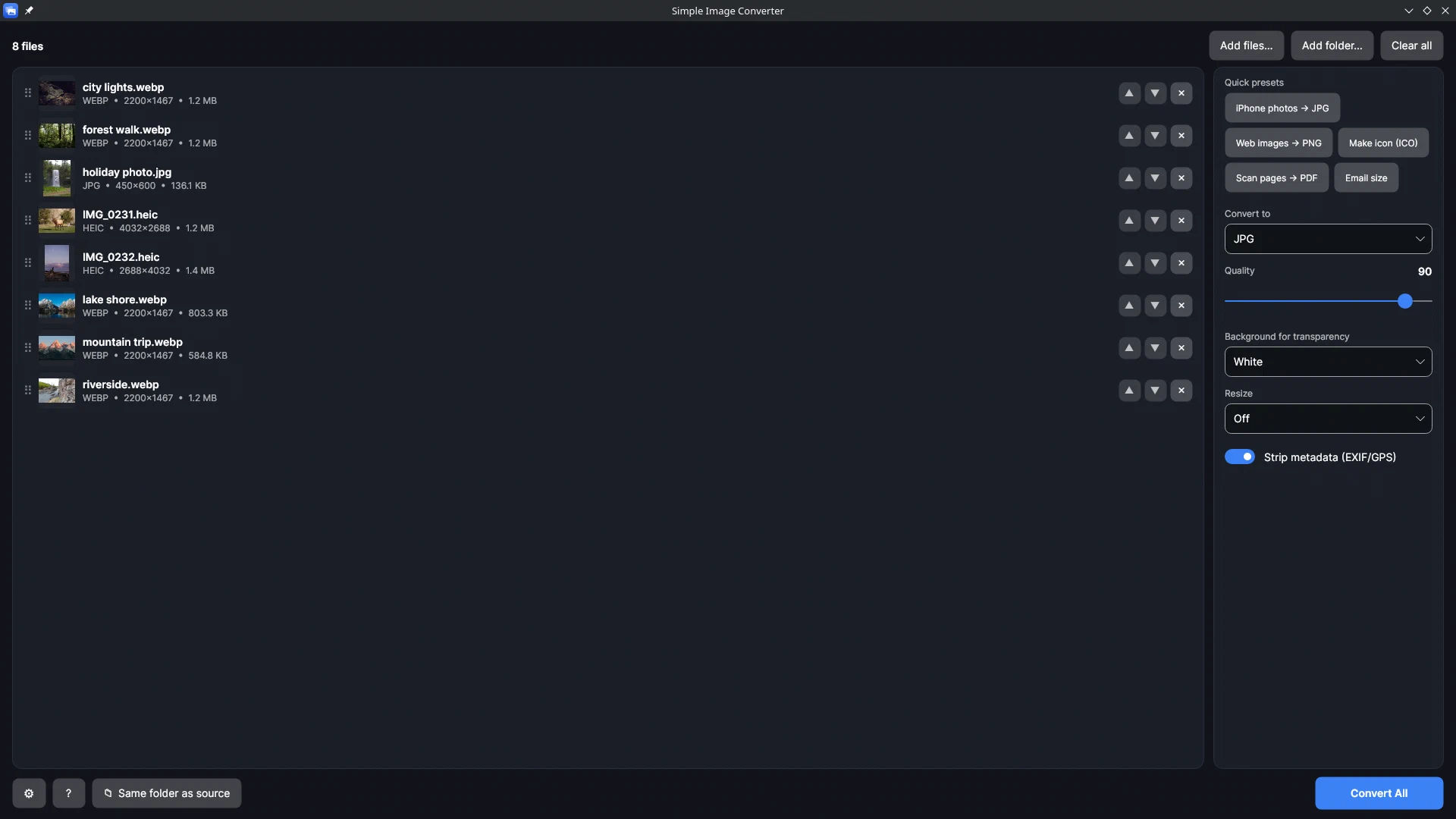
In Simple Image Converter the switch is Strip metadata (EXIF/GPS) in the options panel, and it’s on by default. Orientation is the one piece of metadata that’s always honoured: the rotation flag is applied to the pixels before it’s discarded, so photos don’t come out sideways.
Why this matters for whole folders
If you convert a phone’s worth of photos before sharing them, the stripping has to be automatic or it doesn’t happen. Simple Image Converter does it by default on the whole batch, on Windows or SteamOS/Linux, and handles WebP and AVIF in the same window, with no codec purchase and no upload. It’s a one-time purchase on Steam.
Related guides
- Bulk convert HEIC to JPG: whole folders of iPhone photos at once, on Windows or Linux
How to convert hundreds or thousands of iPhone HEIC photos to JPG in one pass with Simple Image Converter: why the usual routes stop at a few files a day, a timed conversion test, what happens to orientation and location data, and a folder walkthrough.
- HEIC to JPG on Linux and SteamOS: a native app that opens iPhone photos without touching your distribution's packages
Convert iPhone HEIC photos to JPG on Ubuntu, Fedora, Arch, Mint or SteamOS with Simple Image Converter: a native Linux build with its own HEIC decoder, so no package roulette and no breakage on photos from recent iPhones. Whole folders in one pass, tested on this site's Linux machine.
- Why are my iPhone photos HEIC, and how do I get JPG instead?
What HEIC is, why iPhones since the iPhone 7 save it by default, the Camera setting that makes the phone shoot JPEG instead, and how to convert the HEIC photos you already have in one pass with Simple Image Converter, on Windows or Linux.