Bulk convert HEIC to JPG: whole folders of iPhone photos at once, on Windows or Linux
One HEIC is easy. Seven hundred of them from a phone backup is where the usual tools stop. Here is where they stop, what a real batch costs in time, and how to do the whole folder in one go.
Why bulk is the hard part
Converting one HEIC photo is a solved problem. The forum threads that rank for this question are all the same shape: “Best way to convert 700 HEIC files stored on my PC into JPEG?”, “Converting 1500~ photos from HEIC to JPG”, “Is there an easy way to convert photos from HEIC to JPEG in bulk?” The answers people get are web converters with daily caps, one-photo-at-a-time apps, or “write a script”. Here’s what the common routes allow, checked on 16 Sep 2026:
| Route | What you can convert at once | Uploads your photos? |
|---|---|---|
| Windows Photos (with Microsoft’s HEIF and HEVC extensions installed) | One photo at a time, via Save as | No |
| CloudConvert, free tier | “10 / day”, with a “5 minutes” processing cap per conversion (its pricing page, 16 Sep 2026) | Yes |
| FreeConvert, free tier | “20 conversion minutes per day”, about “20 files per day” (its pricing page, 16 Sep 2026) | Yes |
| Browser-based converters | Limited by your browser’s memory; batches of a few hundred can stall | They run in the tab |
| Simple Image Converter | Up to 500 files per batch, or whole folders with subfolders, in parallel | No |
A timed batch
We took 12 CC0 photos from Wikimedia Commons, encoded them to HEIC at quality 80 and about 3,840 × 2,560 px (43 MB in total, a fair stand-in for iPhone shots), and converted them to JPG at quality 90 on the site’s build machine, an 8-core AMD Ryzen 7 7700X desktop, on 16 Sep 2026, using libheif (1.21 on our machine; Simple Image Converter bundles the same library).
| Run | Time for 12 photos | Per photo |
|---|---|---|
| One at a time | 5.8 s | 0.48 s |
| In parallel (16 threads) | 0.98 s | 0.08 s |
At the parallel rate, 700 photos is about a minute; one at a time it’s about six. The app converts in parallel by default. Your numbers will differ with your CPU and photo sizes, but the shape holds: decoding HEIC is the slow part, and it parallelises well.
The output was 31 MB of JPG from 43 MB of HEIC, because JPG at quality 90 is a little leaner than a quality-80 HEIC at the same pixel size. For the same 12 photos as PNG the output was 138 MB, which is why JPG is the right target for photos and PNG for graphics; the app’s presets pick the right one for each job.
Orientation and location data
Two things bite people who batch-convert phone photos:
Orientation. Phones save the sensor’s native orientation and write a rotation flag in the metadata. A converter that copies pixels and drops the flag produces sideways photos. Simple Image Converter always applies the EXIF orientation to the pixels, so portrait shots come out upright.
Location. iPhone photos carry the GPS position, the device model and the time. Simple Image Converter strips EXIF, GPS and XMP by default; switch Strip metadata off if you want to keep them. We tested this on a HEIC with a GPS position written into it: the tag was present in the HEIC and absent from the converted JPG. The convert without uploading page shows the check.
The whole folder, in one window
- Drop the folder onto the window (or click Browse folder), and tick Include subfolders if the photos are sorted into months.
- Click the iPhone photos → JPG preset. It sets JPG, quality 90, and metadata stripping.
- Click Convert All. Files convert in parallel; a file the app can’t read is skipped with a reason and the rest carry on.
- The summary tells you how many converted and the size before and after. Nothing is overwritten: a clash becomes
name_2.jpg.
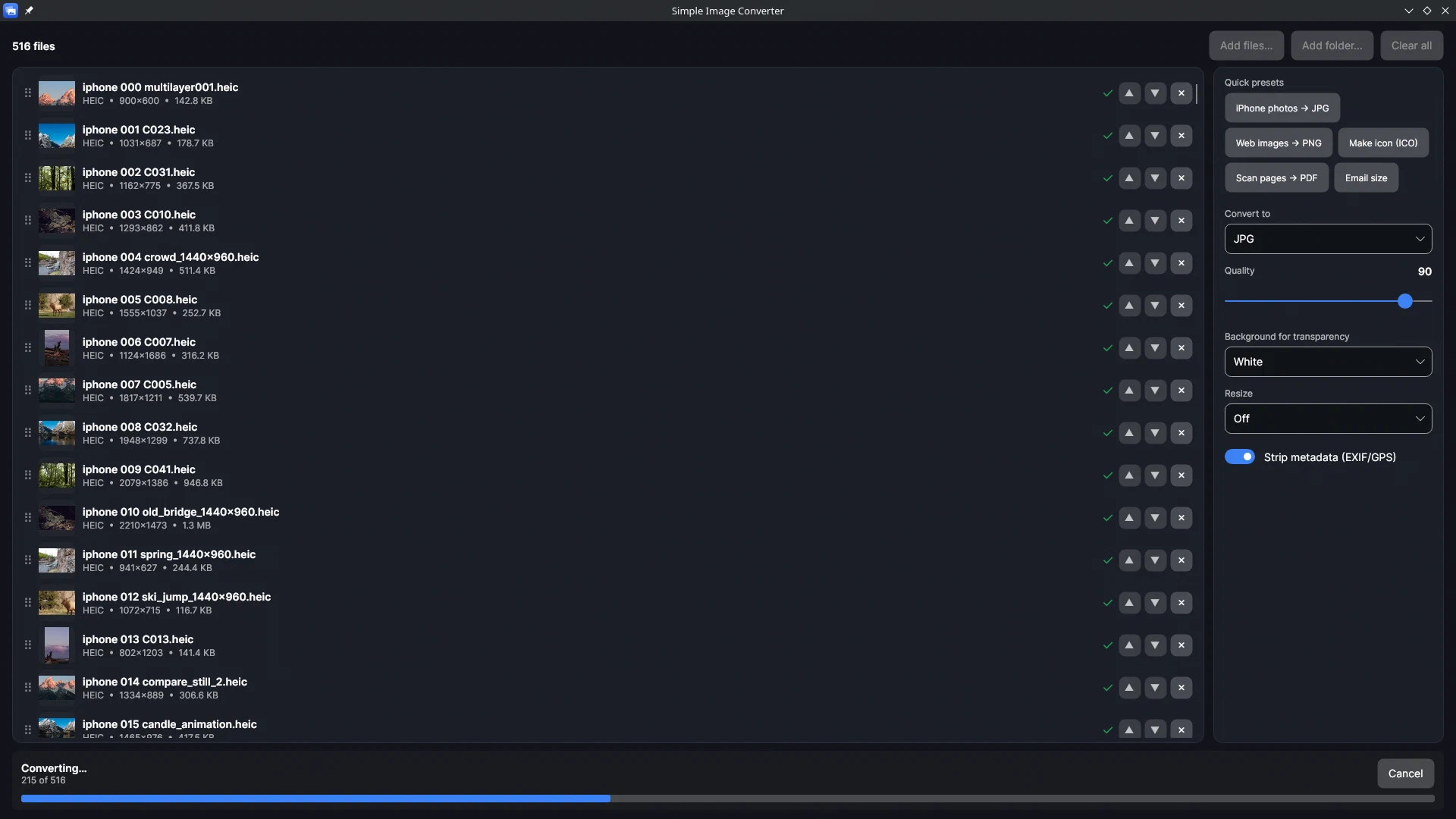

It needs no Microsoft codec, it runs the same on Windows 10, Windows 11 and SteamOS/Linux, and it doesn’t upload anything. It can’t save HEIC (only open it), and it doesn’t do RAW; the app page has the full Opens / Saves table. One-time purchase on Steam, no daily caps.
Related guides
- HEIC to JPG on Linux and SteamOS: a native app that opens iPhone photos without touching your distribution's packages
Convert iPhone HEIC photos to JPG on Ubuntu, Fedora, Arch, Mint or SteamOS with Simple Image Converter: a native Linux build with its own HEIC decoder, so no package roulette and no breakage on photos from recent iPhones. Whole folders in one pass, tested on this site's Linux machine.
- Convert HEIC to JPG without uploading, and strip the location data while you're at it
What 'no upload' actually means and how to check it yourself, what an iPhone photo carries in its metadata (GPS, device, time), and a test showing the location tag present in a HEIC and absent from the JPG Simple Image Converter's decoder produced.
- Why are my iPhone photos HEIC, and how do I get JPG instead?
What HEIC is, why iPhones since the iPhone 7 save it by default, the Camera setting that makes the phone shoot JPEG instead, and how to convert the HEIC photos you already have in one pass with Simple Image Converter, on Windows or Linux.