PC gaming with low vision: a practical setup guide
This is a page about settings and tools, not about eyes. It’s for people whose vision makes small game text hard, whether that’s age, a condition, or a 4K monitor at the wrong distance.
Start with the monitor
The cheapest fix is physical. Text size on screen is a function of pixel size and viewing distance, so a larger monitor, or the same monitor closer, makes every game’s text bigger with no settings at all. A 32-inch 1440p panel at 60 cm shows text about a fifth larger than a 27-inch 1440p panel at the same distance; a 27-inch 4K panel at the same distance shows it a third smaller than 27-inch 1440p. If you’re choosing a monitor for reading comfort, resolution is the enemy and size is the friend, up to the point where you have to turn your head.
The W3C’s Accessibility Requirements for People with Low Vision is a useful reference for what different people need: some need low brightness, some high contrast, some read better with dark text on a light background, and most need to be able to change text size and spacing. Nothing in it is game-specific, and all of it applies.
Operating-system settings
- Scaling. Windows: Settings → System → Display → Scale. KDE Plasma: System Settings → Display → Global Scale. Scaling helps games that respect it and blurs games that don’t; see game text too small for the details.
- Cursor. Windows: Settings → Accessibility → Mouse pointer and touch, for size and a high-contrast colour. KDE: System Settings → Mouse & Touchpad → Cursor size. A big cursor is the single most useful change for finding the pointer in a busy scene, and it makes a pointer-following lens easier to aim.
- Contrast and colour. Windows’ contrast themes and colour filters (Settings → Accessibility) apply to the desktop and to windowed games; full-screen games mostly ignore them, which is why Second Look’s colour filters and dark-scene lift work inside the lens, over the game.
In-game settings to look for
The options menu is where most of the wins are, and where they vary most. Look for: UI or HUD scale, text size, subtitle size and background, colour-blind modes (which often also increase contrast), high-contrast UI, reduce motion or camera shake, and cursor size. Recent large games frequently have all of these; older and smaller games often have none. Steam’s store pages now carry accessibility feature flags, so you can check before buying.
Audio cues
Many games let you turn on audio cues for interactions and threats. For text-heavy games the more useful setting is text-to-speech for menus and dialogue, which a growing number of games include. Where it exists it covers dialogue; it does nothing for tooltips, item text or a map, which is what the lens is for.
The text that stays small
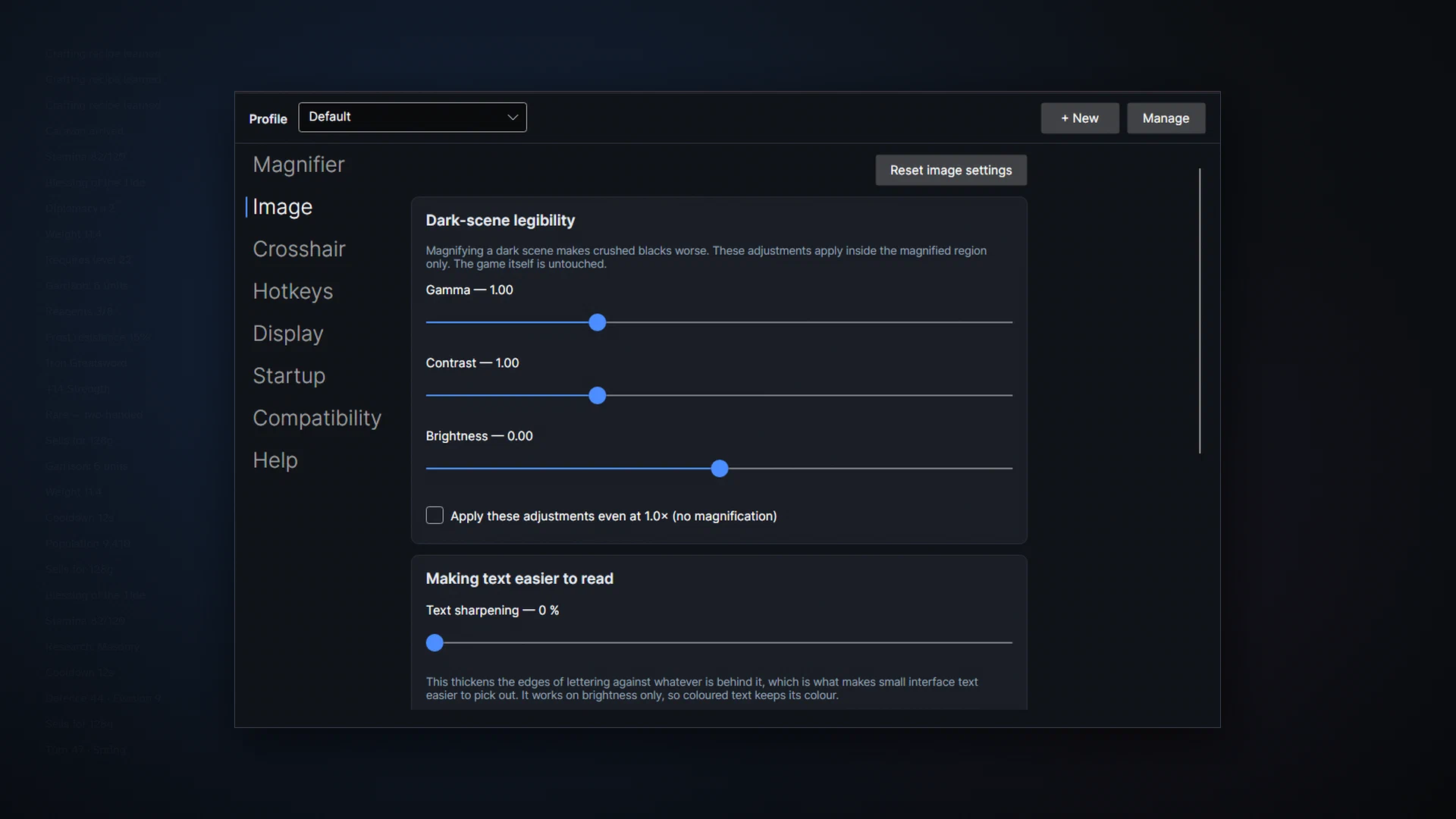
Even with everything above set, some things stay small: tooltips, item descriptions, map labels, quest logs, dense strategy-game panels. Second Look was built for exactly this reader: a lens that follows the pointer, up to 5×, with FSR sharpening and a text-sharpening pass so the enlarged text has edges, a dark-scene lift for dim menus, colour filters inside the lens, hotkeys on a bare Shift, a mouse button or a controller, and a profile per game. With zoom off, nothing runs. It’s on Windows 10 (2004+) and 11 and on SteamOS in Desktop Mode.
What Second Look doesn’t do
It doesn’t read text aloud, do OCR, or replace a full magnification-and-speech suite. It doesn’t treat or correct anything; it enlarges and sharpens what’s under the pointer. It doesn’t run in SteamOS Game Mode or over exclusive fullscreen, and it doesn’t work in games with kernel-level anti-cheat; its page lists those games before you buy. If a screen reader or a full assistive suite is what you use on the desktop, keep it; Second Look is for the game window, and it exits when you close it. One-time purchase on Steam.
Related guides
- Game text too small? Why it happens, what the settings can do, and a lens for the rest
Why text in modern games is so small, especially at 1440p and 4K, with a worked example of how small it really is on common monitors; what in-game UI scale and Windows display scaling can and can't fix; and Second Look, a sharp lens under your cursor for the tooltips, quest logs and map labels that stay small.
- A game magnifier for KDE Plasma 6 (Wayland): why the built-in zoom isn't enough for reading games, and a lens that is
On KDE Plasma 6 under Wayland, the built-in Zoom effect magnifies the whole desktop and pixelates at high zoom. Second Look is a lens that enlarges only what's under the pointer, sharpened, with hotkeys and per-game profiles, built for KWin. Steam Deck Desktop Mode included. Not GNOME, not X11.