Simple Voice Changer
Voice changer and soundboard for Discord, games and streams: neural voices on your CPU, your own RVC character models, or classic effects. It has its own site now, simplevoicechanger.io.
BORDERLESS WINDOW MANAGER
Run any game windowed or borderless full screen on the monitor you want, even when the game has no option for it. Click your second monitor and the game stays put. It never asks for administrator and never puts code into a game.
Windows + SteamOS/Linux · one-time purchase · no account · no DLC
Windows 10/11 (64-bit) · SteamOS Desktop Mode · Linux: KDE Plasma 6
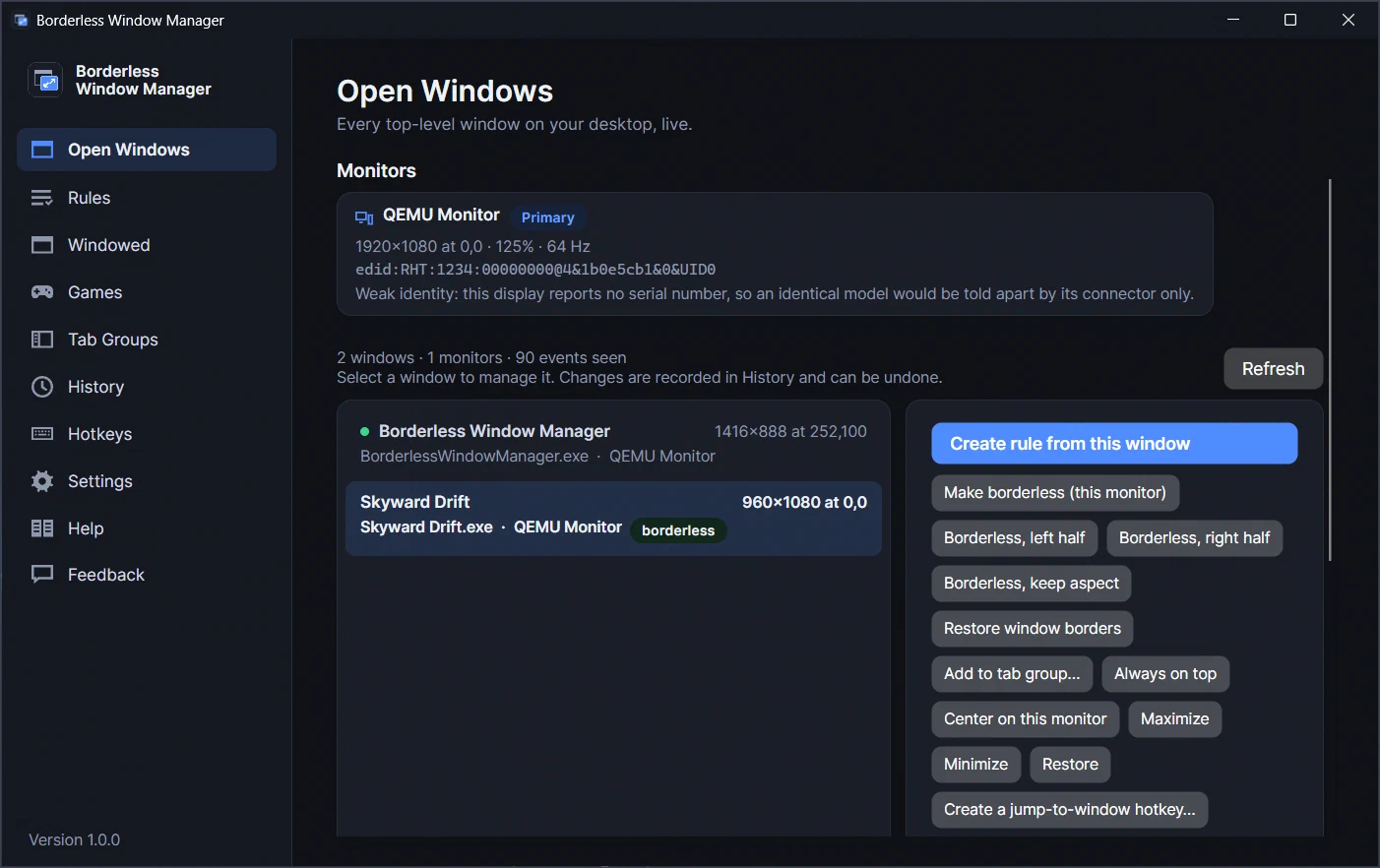
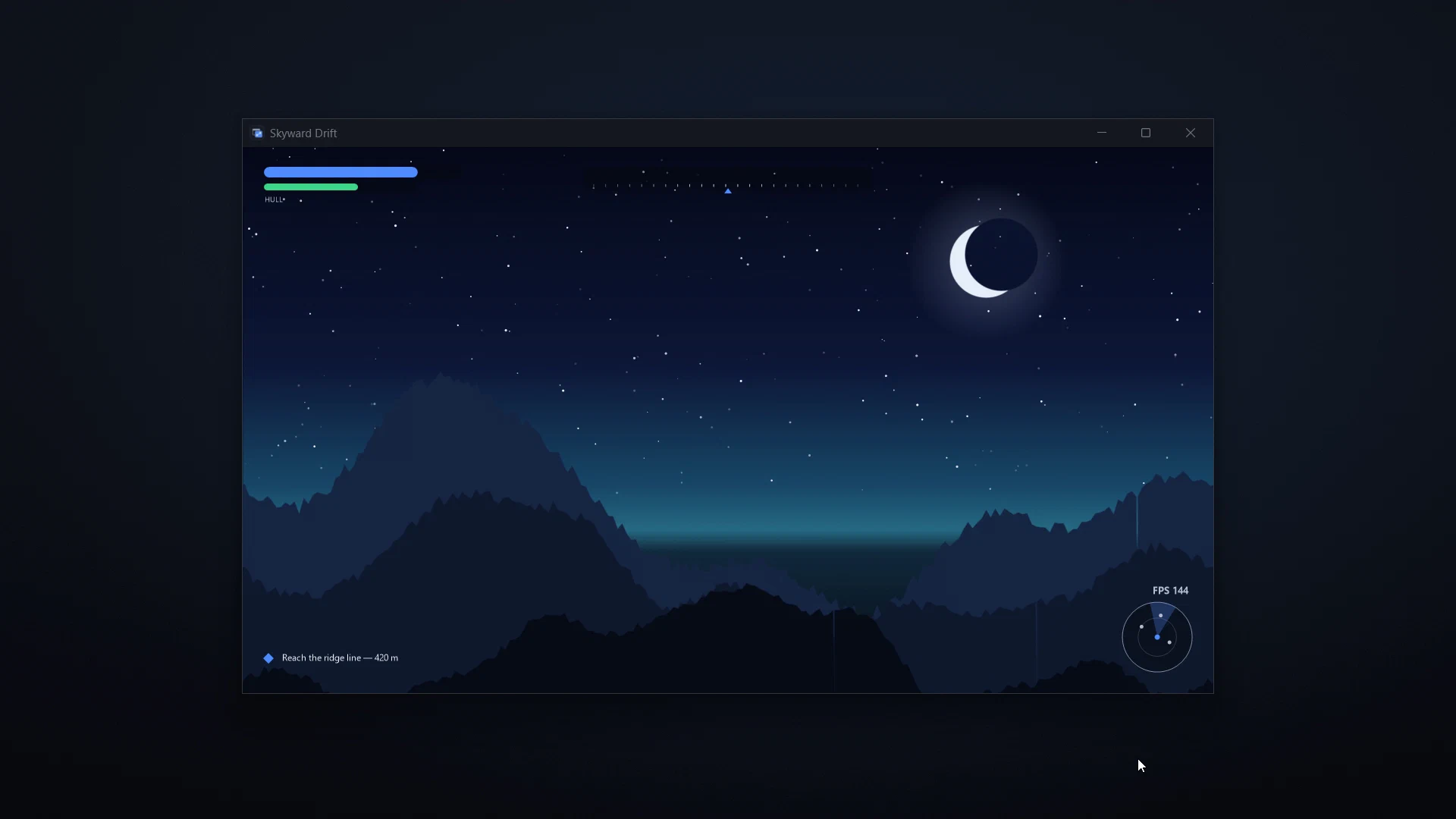
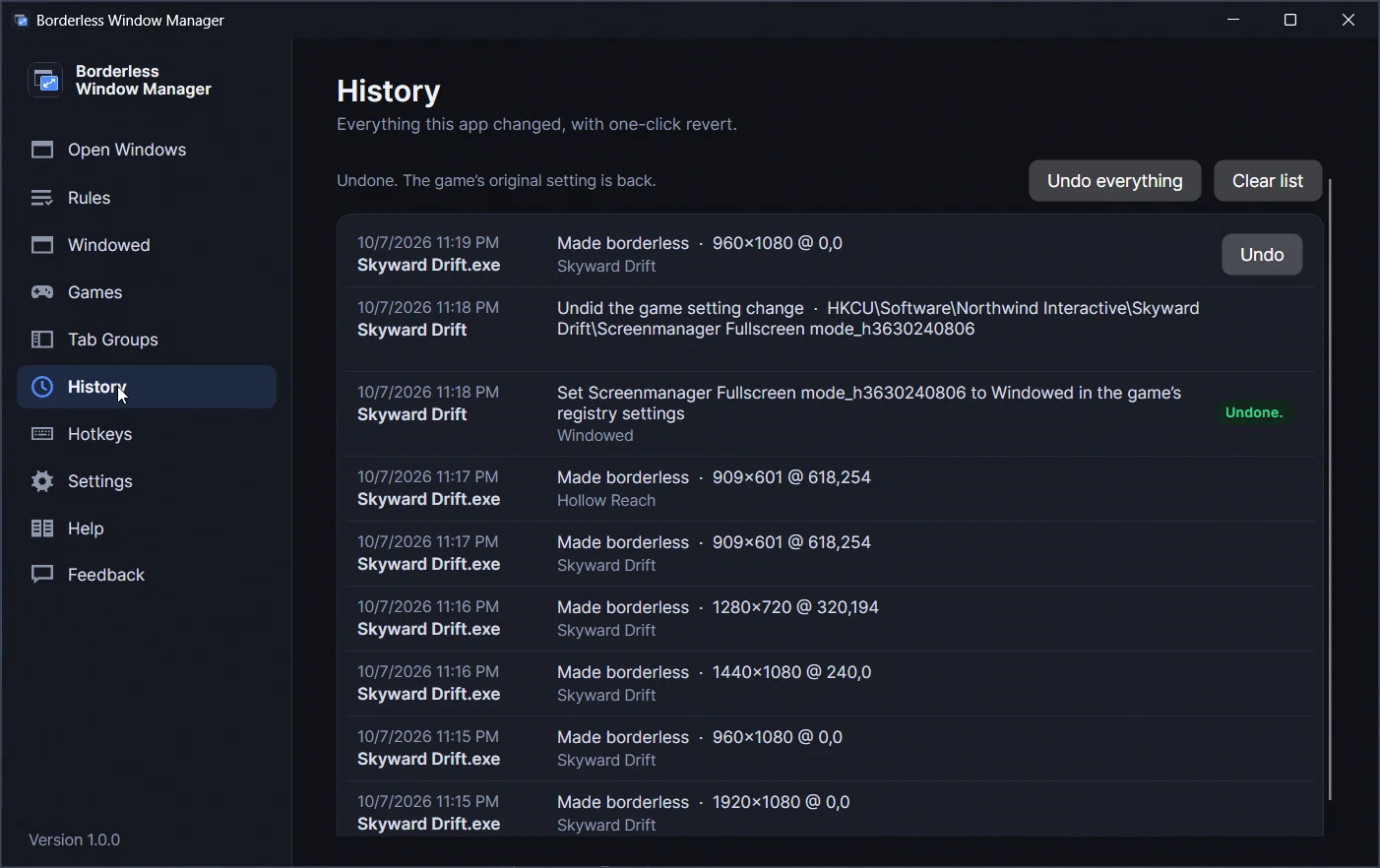
Press Ctrl+Alt+B while a game is in front and it goes borderless: the title bar and frame disappear, the picture fills the monitor, and alt-tab is instant. It works in games that were never designed for it. Undo it any time from History.
“Fill the monitor” is only the default:
A borderless window is still a window. Move to a browser, a chat or a guide on the other screen and back again; the game stays exactly where it is, full size, never minimized. Works fine on one monitor too.
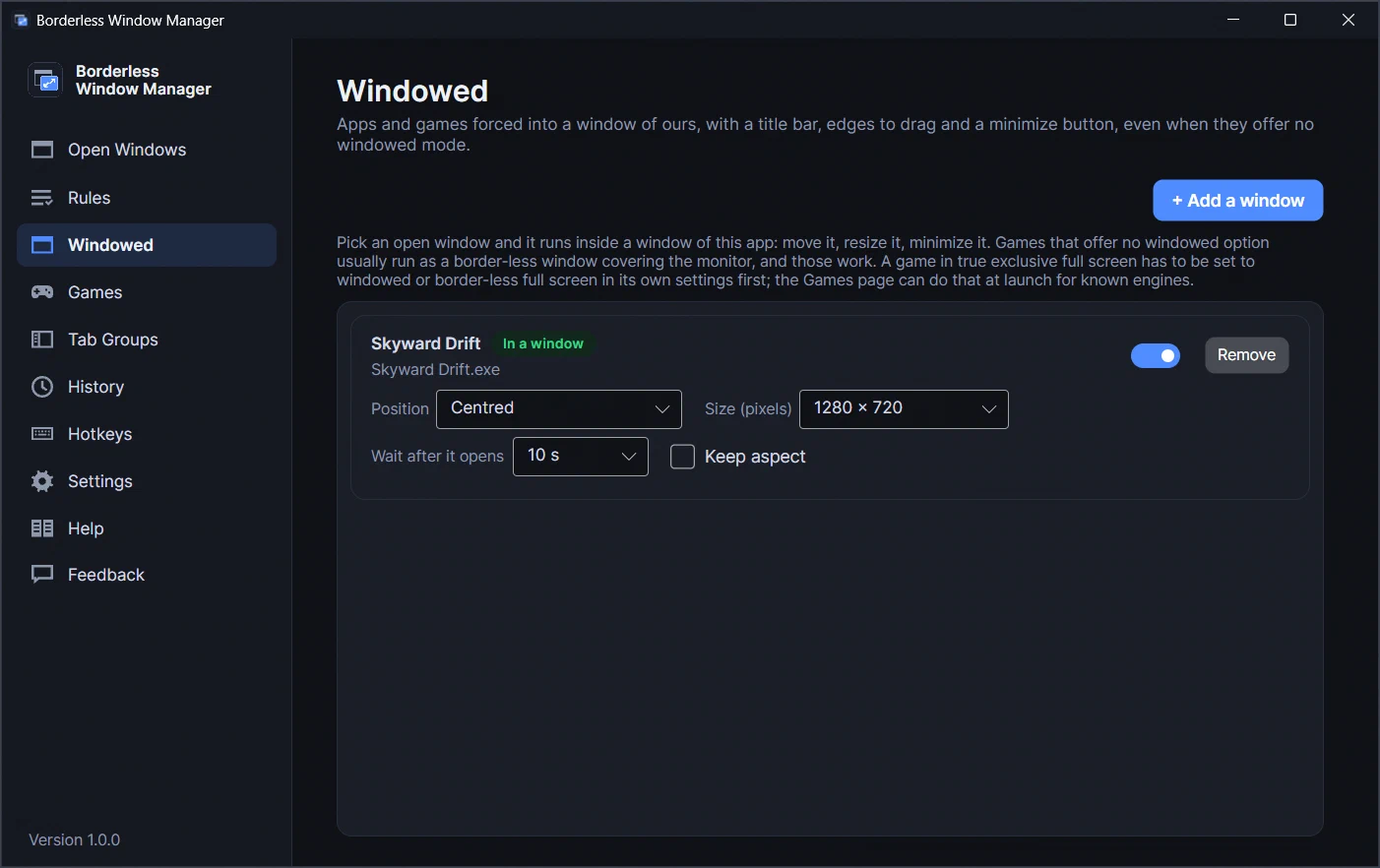
For a game that has no windowed mode at all. Pick it on the Windowed page, or send it there from the Games page, and from then on it runs inside a window of the app’s: a title bar, edges to drag, a minimize button. Choose where it opens (centred, a corner, or where you last put it) and how big: as placed, as large as fits, or an exact size such as 1280 × 720. A game that applies its own resolution a second after it starts can be given a moment before it’s placed.
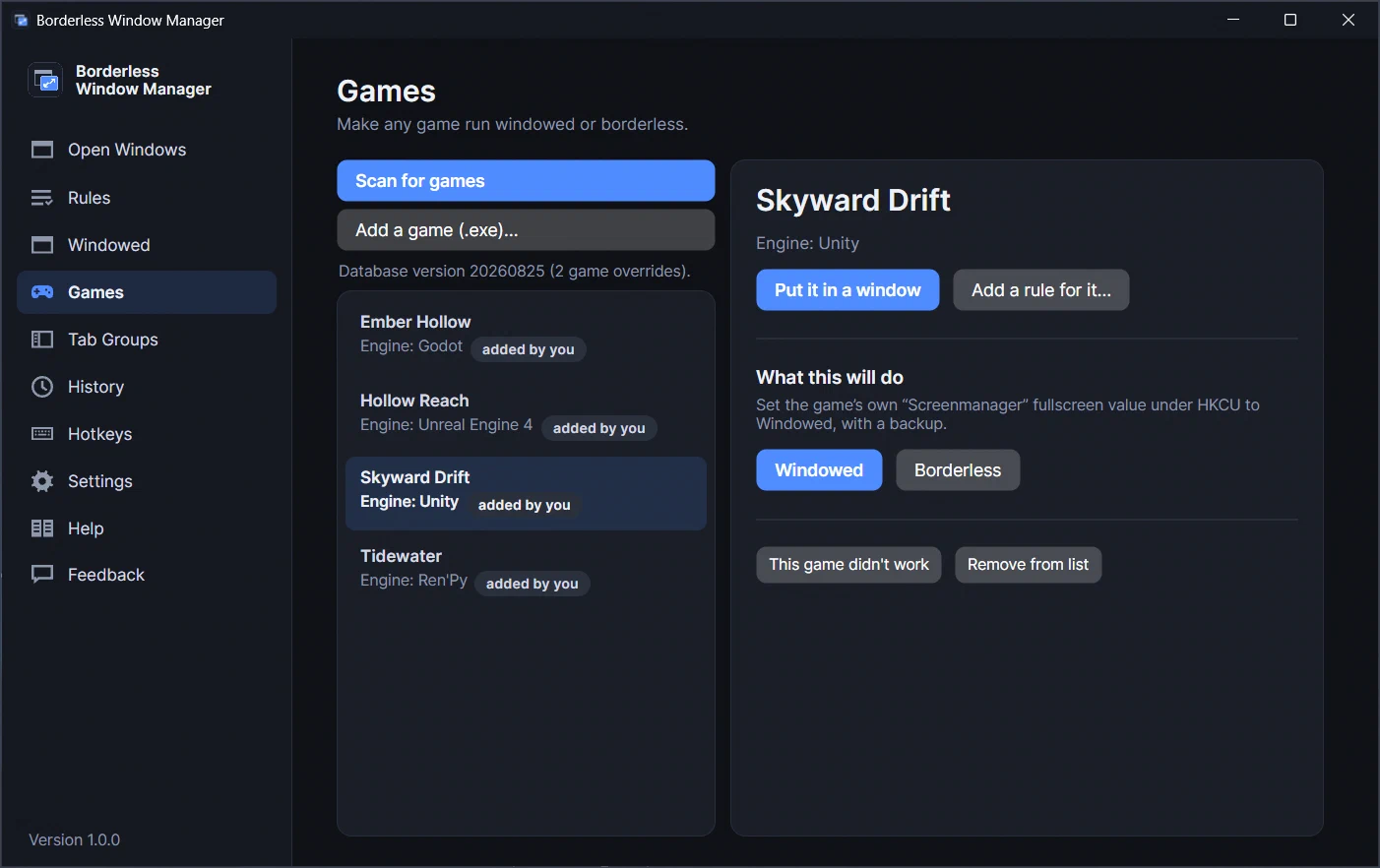
The app knows how the common engines store their display settings: Unity, Unreal Engine 3, 4 and 5, Godot, GameMaker, RPG Maker, Ren’Py, Source and Source 2, id Tech, CryEngine, and the NW.js and Electron runtimes. It changes them the way the game itself would, through the game’s own configuration file or registry value, while the game is closed, with a backup. Where an engine only takes a launch option, the app shows you the exact text to paste into the game’s Steam launch options.
The Steam store page carries this disclosure, repeated here word for word:
To make a game run windowed, this app edits that game’s configuration file or registry value only when you ask it to, only while the game is closed, always with a backup and an Undo button in History. It never modifies game executables and never injects code.
Capture a rule from any window in two clicks: which monitor it opens on, how big, borderless or not, always on top, first window or every window of that app. Position memory brings windows back after sleep, a monitor unplugging or a docking station, without you doing anything.
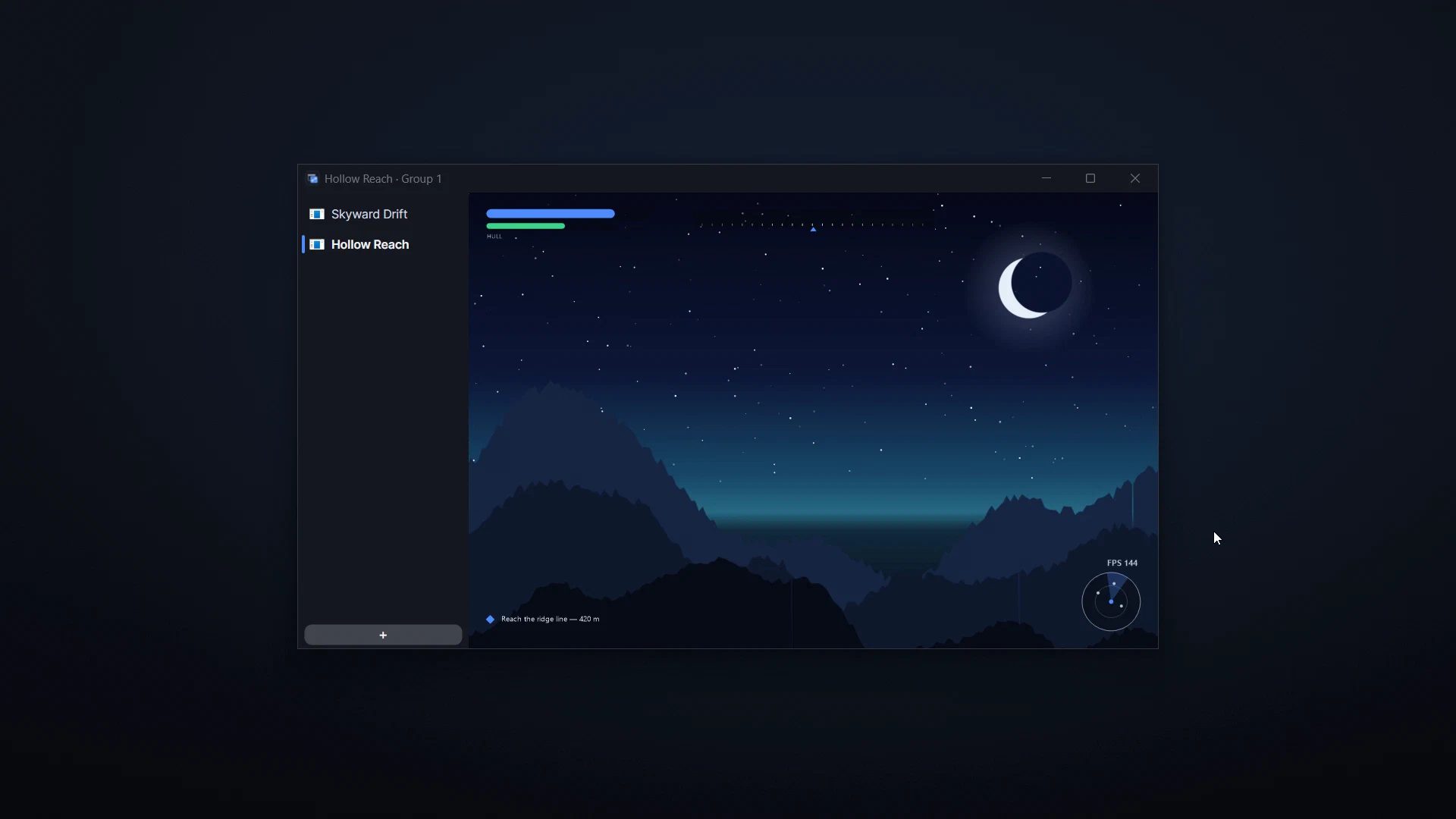
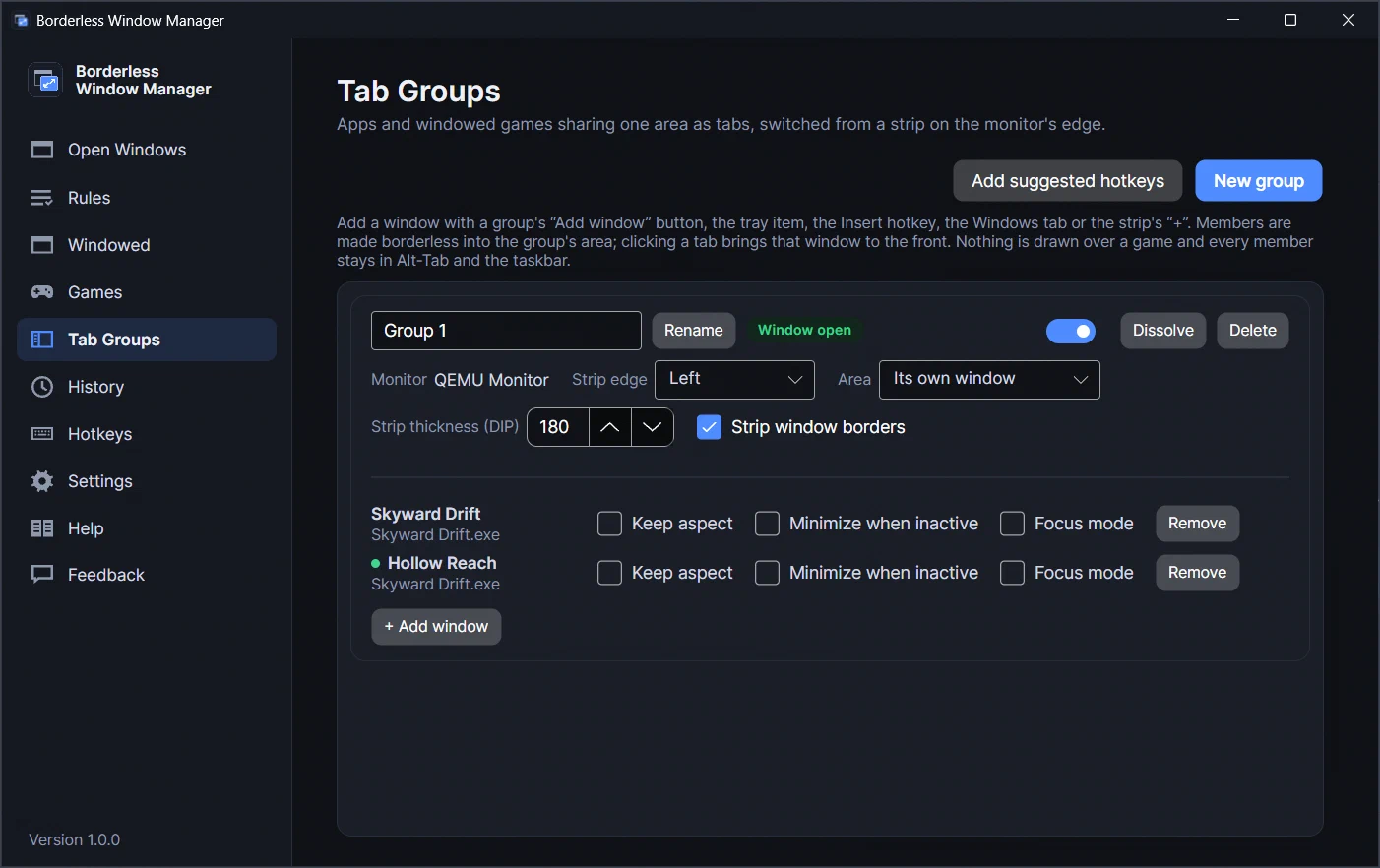
Put Discord, a browser and a guide into one window as tabs, listed down its side. The group moves, resizes and minimizes as one, and it can sit beside the game in the other half of the monitor. Or dock a thin strip to the edge you choose (left, right, top or bottom) and share that area of the monitor instead. Click a tab or press a hotkey and that window comes to the front. Every tab stays an ordinary window, in Alt-Tab and on the taskbar, and nothing is ever drawn over a game.
%APPDATA%\BorderlessWindowManager on Windows and ~/.config/BorderlessWindowManager on SteamOS and Linux. Settings has an “Open data folder” button.The configuration-file and launch-option routes change a game’s settings the way the game’s own menu would, while the game is closed, so they work with anti-cheat games. Changing the window of a running anti-cheat game is off by default and can be enabled per game; titles protected by Riot Vanguard are configuration-only. Whether a particular anti-cheat system objects to that is up to its maker, so leave it off if you’re unsure.
Only when you ask it to make a game windowed or borderless, only while the game is closed, and always with a backup and an Undo button in History. It never modifies game executables and never injects code. Prepare for uninstall reverts every edit before you remove the app.
Often, yes: for the engines listed above, the Games page switches the game’s own setting to windowed or borderless, or gives you the launch option to paste into Steam. Once the game runs in a window, Ctrl+Alt+B, rules and the Windowed page all work on it.
In Desktop Mode, yes: it runs on SteamOS’s KDE Plasma desktop and manages windows and Proton games there like on Windows, without the cursor lock, the black backdrop and docked tab strips. In Gaming Mode there is no desktop to manage, so nothing of the app appears; switch to Desktop Mode to use it.
No, never. The flip side is that it can’t manage the window of a program that runs as administrator, and it tells you when that’s the case.
Yes. Borderless at the game’s own aspect ratio, a game with no windowed mode in a window of its own, rules, tab groups and History all work on one monitor.
Voice changer and soundboard for Discord, games and streams: neural voices on your CPU, your own RVC character models, or classic effects. It has its own site now, simplevoicechanger.io.
Batch-convert folders of HEIC, WebP and AVIF images to JPG or PNG, offline, with location data stripped by default.
Turn a video clip into a GIF or animated WebP that fits a file-size limit on the first try. Offline, Windows and Linux.
Point at game text you can't read and it enlarges, sharp, under your cursor. Built for players who don't see small text well.
A cozy idle railway game in a strip along the edge of your desktop. Trains keep running while you work, and the town grows.
Windows + SteamOS/Linux · one-time purchase · no account · no DLC. Price and any current discount are shown on Steam.